Posts

Showing posts with the label K-2

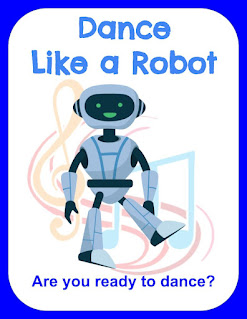
Elementary Robots: Dance Like a Robot Unplugged Activity- FREE Resource
Image
At ISTE '22 this year, I was given the opportunity to share my passion for teaching elementary students robotics with a fantastic group of educators. Being a computer teacher for many years, I even spent my pre-teaching days teaching 3 and 4-year-olds computers in a local daycare here in Western New York before landing my first teaching job, I was excited to share and learn from others. Especially after not being with humans for so long due to the pandemic. Throughout my career, I have been a strong advocate for Computer Science. I was humbled by the experience of sharing the workshop, eRobots: Robots for the Elementary Classroom, with a broader audience outside of my hometown. Over the next few days, I will share a variety of the resources I have created, either when I was a teacher in the classroom or for this specific workshop. First up is Dance Like a Robot. After discussing the importance of teaching young students computational thinking, I focused on how our littles learn...

Free Learning Menus, HyperDocs, Choice Boards, Play Lists Editable Templates

Image
As part of an effort to incorporate more mind breaks into my day, I have been creating and editing the following Google Slide document that I would like to share with you. I have a feeling that I will continuously be adding so please check back.  You can grab your free copy by clicking here. Upon opening the document, you will notice that there are many slides that have pre-made themes for you to use with your students. You can easily delete any slide you wish not to use in the template by clicking on the unwanted slide on the left hand side and going to Edit in the menu then Delete :   Furthermore, you can edit any of the following tables to meet your needs. You and/or your students can type and change the format of the font or color within each editable table.  The document is completely editable. Please feel free to use the created backgrounds to create a  Learning Menus, HyperDocs, Choice Boards, Play Lists based on your needs. You can easily customize th...

Great Internet Safety Resources for K-2

Image
Internet Safety concepts are sometimes hard for the younger student. Below I listed  a few of my favorite resources. Video: Story: ABCya's Cyber Five Video:  Faux Paw's Adventures in the Internet (Oldie but Goodie) Game: Webonauts BrainPOP Jr.'s Internet Safety What's you favorite resource?

Reading, Writing and Robots- Oh My!

Image
KINDERGARTEN STEM For this lesson, you will use ABCYa.com's Make a Robot to engineer a robot from the various parts and pieces presented in the game.  Discuss the terms engineer and scientific  statement. Your students will then learn how to print your robot and type a Scientific Statement  (a sentence or two about what their robot can do) using a Word Processor. I suggest printing out their scientific statement and robot and mount on a piece of colored construction paper. And, hey- it's awesome to see the Tech Teacher's student work in the hallway every now and then too! Have your students present their finished project to the class! Resources for your project: ASK A NASA ROBOTIC ENGINEER!  http://robotics.nasa.gov/students/faq.php MORE FROM A ROBOTIC ENGINEER! Assessment: Rubric Vocabulary: STEM, Inventor, Scientific Statement, robot, engineer ISTE Standards 1. Creativity and innovation - Students demonstrate creative thinking, construct knowledge, ...

Internet Safety Digital Comic Strip for Second Graders

Image
In this unit students will learn: How to be safe online What information you should  NEVER  share with anyone you meet online. How to create a Make Beliefs Comix Strip to tell a story of how to be safe online. What you need: Faux Paw's Adventers in the Internet- Digital book or online video (above) and resources from ikeepsafe.org Make Beliefs Comix Website What you do: Introduce Internet Safety by reading/watching Faux Paw's Adventures in the Internet and discuss what information you do not share online. Have students complete the associated Activity Sheet that iKeepsafe.org provides with this lesson to use as a guide for their Comic Strip. Have students create a 6 panel (or more) comic using Make Beliefs Comix outlining the five pieces of information not to share while on the Internet. Use this Google Doc as your students guide for the project- make it your own by going to File-->Make a Copy! Example:

Make Word Clouds and Shapes with Tagul

Image
Word Clouds. Those popular little word clusters that make text fun and visually appealing. But how can I use them in my classroom- and where can my students not only create a Word Cloud- but save it as well? Let's start with the later.  Tagul  is a wonderful Website for your Tech Toolbox that has taken those Word Clouds a step further by allowing the user to not only select the shape, but text color, font styles and animation as well. And best of all it is free and (here's the kicker) unlike Wordle , you can save your work. Your students will need an email to create accounts. What can I do with Tagul and Word clouds? Sight Word- Word Cloud Taguls! As part of my curriculum, Kindergartners are introduced to the Keyboard. My lessons start off basic: understanding that the letters on the keys are in QWERTY order and to slowly become familiar with where they are located- and not so much on form. Anyway, we typically practice typing our names and then I slowly introduce sight words...

2nd Grade- Introduction to Microsoft Word

Lesson Name: Microsoft Word Grade: 2 Major Topic: Word Processing Week/Weeks: 5 NETS for Students : 1. Technology Operations and Concepts Students demonstrate a sound understanding of technology concepts, systems, and operations. Materials: Microsoft Word- any version Electronic White Board Computer Projector (if needed) Activity: Week 1- Introduce Microsoft Word: Show how to open/close the program from their desktop Depending on the version of Word you are using, give your students the grand tour of the menu or ribbon. Demonstrate how to type words, change font, and indent. For this intro they need not to worry about spelling or grammatical errors. This week’s Intro Lesson: With Microsoft Word open at each student’s computer, have them type in his or her first and last name. You may have to remind students at this grade to use the shift key to make the first letter in their first and last name capital. Have them highlight their name by clicking and ...

1st Grade Lesson- Using Paint Program to Illustrate Sentence

Image
Lesson Name:Using Paint Program to Illustrate Sentence Grade: 1 Major Topic: Fine motor skills, typing, Drawing, Saving, Printing Week/Weeks: 2 Classes  This is a great review of typing and Windows Paint for your first grade computer class. 1st Grade Lesson- Using Paint Program to Illustrate Sentence {sample} NETS for Students : Basic operations and concepts Students demonstrate a sound understanding of the nature and operation of technology systems. Materials: Whiteboard and projector  Computer Microsoft Paint Motivation: Have this sentence displayed for all to see: "This is what I learned in school…." Activity: Have students open up Windows Paint Program. Show them how to use the typing feature. Have them type the above sentence by stressing the importance of using capital letters. Demonstrate the shift key. Have the students draw a picture on the same page of what they learned in school. Teach them how to send to the printer if this is an op...

First Grade- Practice Typing Sight Words

Grade: 1 Major Topic: Fine motor skills, typing Week/Weeks: 1 Class NETS for Students : Basic operations and concepts Students demonstrate a sound understanding of the nature and operation of technology systems. Materials: Word Processor such as Microsoft Word, or WordPad. Projector Electronic Whiteboard  First Grade Typing Sight Words PDF Motivation: Display the First Grade Typing Sight Words PDF on a projector on the front of the room. Activity: After you have introduced the keyboard to your first graders, now is the time to practice typing! Demonstrate to the class how to open the word processor of your choice. Teach them how to use the SPACEBAR and the ENTER key to make spaces and line breaks. Have your students type their first names and hit the enter key twice to start on a new line. The First Grade Typing Sight Words PDF has a list of 10 words. Show each one on the electronic whiteboard until eve...

Teaching Kindergartners about the Internet

Image
Teaching Kindergartners about the Internet may be a challenging task, or one that comes more naturally, depending if they are allowed to use the computer at home. In a typical class you may find that it is usually a mixed pot of pro's and newbies. This lesson will give your novice Internet users a chance to explore while you giving you a chance to help the beginners practice. This is also great for their fine-motor skills. Objective: Internet Classes: 2-3 NETS Standards: 5. Digital Citizenship 6. Technology Operations and Concepts Materials: Projector Electronic Whiteboard Computer Internet ABCya! Kindergarten Elementary Pages Preparation: It may be easier to have the Website http://www.abcya.com/kindergarten_computers.htm   on each of your Kindergartner's computers. Motivation: Have the ABCya! Website presented at the front of the computer room. ***Tip*** I usually keep the monitor off until they are ready to work! Activity: 1. Discuss with your class the parts of the Internet...

Learning the Internet for Second Grade with worksheets

Image
Major Topic: URL’s and search engines Week/Weeks: 2-3 classes NETS for Students: 3. Research and Information Fluency Students apply digital tools to gather, evaluate, and use information. Students: a. Plan strategies to guide inquiry. b. Locate, organize, analyze, evaluate, synthesize, and ethically use information from a variety of sources and media. c. Evaluate and select information sources and digital tools based on the appropriateness to specific tasks. d. Process data and report results. 6. Technology Operations and Concepts   Students demonstrate a sound understanding of technology concepts, systems, and operations. Students:   a. Understand and use technology systems. Materials: Whiteboard and projector Computer with Microsoft PowerPoint or a .ppt reader on it Basic Internet for 2 nd Grade PowerPoint URL Checklist Worksheet Internet Search Engine Worksheet   Motivation: Have the PowerPoint, Basic Internet for ...