Posts

Showing posts with the label Kindergarten Computer Lessons

Fun With Making Movies, Digital Story Writing and Comics for the Kindergarten Technology Class
Image
Kindergartners are fun, imaginative souls.  They have a lot to share and their stories are genuine.  This is a great age to start introducing the basics of digital story writing and exploring that creativity. Below are some sites that I use with my Kindergartner to second grade students: Arthur's Comic Creator Those little hands will have a blast adding backgrounds, prompts and text with ease! Buster's Movie Maker Learn about the elements of a great movie and change the mood of the movie. My Story Maker Another fun Website with writing prompts! Great for younger students! You can print and share the stories when you are finished as well. Storybird One of my favorite Websites to use with my students. Easy to use and offers a lot of great visuals! Story Maker from ABCya! Who doesn't fall in love with what ABCya! offers on their site? Students can create a story from scratch and print it out when they are done. Story Jumper Create and shar...
Program a Preschooler/Kindergartner: Teaching young students to code

Image
I started off my career over 12 years ago teaching preschool children computer technology. I can tell you a lot has changed in terms of computer technology education. Preschoolers are typing... Preschoolers are creating..... Preschoolers are problem solving..... Preschoolers are troubleshooting.... Preschoolers are coding! Go beyond the Hour of Code and  make code apart of you curriculum.  I love to introduce code to my Preschool and Kindergarten students by teaching them the basic fundamentals of coding: following directions. I begin by explaining to the class that to begin, we are going to pretend that you are robots and I am going to code you! After all, coding is simply giving a set of commands that need to be followed. I made this very basic "Program a Preschooler/Kindergartner" Google Slide here  (and you can grab a copy here ) that I used to introduce simple sets of directions (or algorithms). There are several ways in which you can employ this a...

Setting Safe Search to Pixabay

Image
If you are ever in the search for royalty free, high-quality images to use with your students, Pixabay.com  is the place to go. I have been a huge fan for years and have found from experience that the bigger they grow and the more popular they have become, the more I am running into questionable images. Luckily, {although not foolproof} Pixabay has a Safe Search for images built right into their Website. Please know that sometimes, (like anything else) questionable content slips through the cracks. You are always your students best line in defense to make certain they are safe. Making sure students know how to "handle" the situation is also a priority (i.e. have them turn off the screen before the come and report it). Here is how to access it Pixabay's Safe Search: 1. In the top right-hand corner is a menu button. Select it and press FAQ. 2. Scroll down until you find the Safe Search section and check off the box to enable. That's it! Happy safe s...

Using Google Draw to create a Doodle 4 Google

Image
What can I say? There is nothing you cannot do in the G Suite. For the last two years or so my 4th-grade students have taking place in Google's contest, Doodle for Google (found here: https://doodles.google.com/d4g/ ). In years past we have used a variety of tools employing various devices (iPads, tablets, etc.). This year I decided to give Google Draw a go with my students. I love Google Draw. How can you not love a tool that you can access anywhere? An artist by trade, I have found many workarounds to use this basic tool. For example, check out this Google Draw Artist, Joshua Pomeroy by watching his video here:   https://youtu.be/OkAuMOjXFCc He makes it look so easy right? Here was my give-it-a-go: Not too shabby for my first attempt if I do say so myself! I thought to myself, "self, why couldn't I use this tool with my students to illustrate what they feel the future will look like?" Below is a Screencast of what tools I intr...

Reading, Writing and Robots- Oh My!

Image
KINDERGARTEN STEM For this lesson, you will use ABCYa.com's Make a Robot to engineer a robot from the various parts and pieces presented in the game.  Discuss the terms engineer and scientific  statement. Your students will then learn how to print your robot and type a Scientific Statement  (a sentence or two about what their robot can do) using a Word Processor. I suggest printing out their scientific statement and robot and mount on a piece of colored construction paper. And, hey- it's awesome to see the Tech Teacher's student work in the hallway every now and then too! Have your students present their finished project to the class! Resources for your project: ASK A NASA ROBOTIC ENGINEER!  http://robotics.nasa.gov/students/faq.php MORE FROM A ROBOTIC ENGINEER! Assessment: Rubric Vocabulary: STEM, Inventor, Scientific Statement, robot, engineer ISTE Standards 1. Creativity and innovation - Students demonstrate creative thinking, construct knowledge, ...

Teaching Kindergartners about the Internet

Image
Teaching Kindergartners about the Internet may be a challenging task, or one that comes more naturally, depending if they are allowed to use the computer at home. In a typical class you may find that it is usually a mixed pot of pro's and newbies. This lesson will give your novice Internet users a chance to explore while you giving you a chance to help the beginners practice. This is also great for their fine-motor skills. Objective: Internet Classes: 2-3 NETS Standards: 5. Digital Citizenship 6. Technology Operations and Concepts Materials: Projector Electronic Whiteboard Computer Internet ABCya! Kindergarten Elementary Pages Preparation: It may be easier to have the Website http://www.abcya.com/kindergarten_computers.htm   on each of your Kindergartner's computers. Motivation: Have the ABCya! Website presented at the front of the computer room. ***Tip*** I usually keep the monitor off until they are ready to work! Activity: 1. Discuss with your class the parts of the Internet...

Kindergarten- Learning the Parts of the Computer with Worksheet

Image
Kindergarten- Learning the Parts of the Computer with Worksheet Grade: Kindergarten Major Topic: Computer Hardware Week/Weeks: 1 class NETS for Students: Basic operations and concepts Students demonstrate a sound understanding of the nature and operation of technology systems.   Materials: Computer Parts Worksheet Crayons Paint program such as Microsoft Paint- open. Motivation: Have students sit in a group and play a game called “Simon Says” and have them take turns finding a part of the computer. “Simon Says, [child’s name] find me the monitor!” This is a great way to learn your students’ names! Procedure: Discuss directions and have students complete the computer parts worksheet (1AComputerPartsWS). Color as per directions. If time permits, have a paint program open for them to practice their mouse skills. Allowing free time in this program will help you assess who will need extra help in the beginning and who may already understa...

Website Spotlight: ABCya.com

Image
    ABCya.com is a a great resource for elementary computer and classroom teachers to have. I used this Web site a lot when I introduced the Internet to young children. It is very easy to navigate and teaches children how to use the forward and back button as well as the "X" that closes out a window. More importantly it is a great way to reinforce mouse manipulation- and it's fun! Great Resources for Computer Education: Kindergarten - 2nd Grade  Computer Vocabulary: Find the Technology Learn ABCya.com's Buttons Color, Draw & Paint 3rd - 5th Grade Computer Input and Output Devices Make an Animation Aside that, ABCya.com offers educational games in language arts and math. From  ABCya.com "All children's educational computer activities were created or approved by certified school teachers. All educational games are free and are modeled from primary grade lessons and enhanced to provide an interactive way for children to learn." I strongly suggest t...

Intro to the Computer Class: Kindergarten

Image
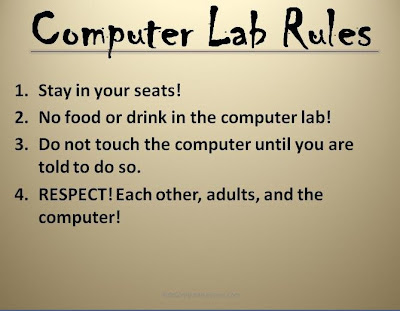
For some computer educators, Kindergarten marks the beginning of a students career in technology. If you are amongst the lucky to have this privilege- embrace it- for they are clean slates and are eager to learn. If you do have a 5 or 6 year old child enrolled in your computer education classes, you may be asking yourself the question "what do I teach to these young children in regards to computer education?" Look no further than here my friend! Your first computer class with these children is going to be your most challenging yet. Why you ask? Simple, they want to learn how to play the computer and they want to play it NOW! However, there are basics to cover. First and foremost you want to introduce yourself, and make them feel at home. Then you want to introduce the computer lab so they become familiar with his or her surroundings. Go around the room and ask them who they are.  Lastly, you want to introduce Computer Lab Rules so they are aware of what is expected from them....

Introduction to the Letters on the Keyboard

Image
Younger children who have just learned their ABC's in order, may have a hard time understanding, let alone memorizing the QWERTY Keyboard. This lesson is a fun way to learn basic keyboarding skills while revisiting the letters of the alphabet. At this age, you only want them to be comfortable at the keyboard- they soon will be proficient typists! For Grades: preschool-first grade Class time: 1 Class NETS Standards "6. Technology Operations and Concepts Students demonstrate a sound understanding of technology concepts, systems, and operations." Materials: Printable QWERTY Letters (PDF) Keyboard Optional: Electronic Whiteboard and Computer   Procedure: Prep: Print out and place the letters in QWERTY order on the floor in your computer lab. If you have tight space, a hallway would suffice. I would also suggest laminating the QWERTY letters. 1. Discuss the Keyboard while students are sitting at their seats. Point out that the letters are NOT in alphabetical order. I...