Posts

Showing posts with the label 3-5

Elementary Robots: Dance Like a Robot Unplugged Activity- FREE Resource
Image
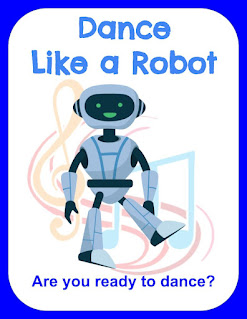
At ISTE '22 this year, I was given the opportunity to share my passion for teaching elementary students robotics with a fantastic group of educators. Being a computer teacher for many years, I even spent my pre-teaching days teaching 3 and 4-year-olds computers in a local daycare here in Western New York before landing my first teaching job, I was excited to share and learn from others. Especially after not being with humans for so long due to the pandemic. Throughout my career, I have been a strong advocate for Computer Science. I was humbled by the experience of sharing the workshop, eRobots: Robots for the Elementary Classroom, with a broader audience outside of my hometown. Over the next few days, I will share a variety of the resources I have created, either when I was a teacher in the classroom or for this specific workshop. First up is Dance Like a Robot. After discussing the importance of teaching young students computational thinking, I focused on how our littles learn...

Google Slides: Get-To-Know-You FREE Template for Remote Learning 2nd-4th Grade

Image
 If you were a game character, what would you be like? Learn about your students by tapping into their inner-gamer. In this simple Get-To-Know-You Google Slide template, your students will: learn how to navigate to a linked Website ( https://www.abcya.com/games/make_a_face ).  create and download their gaming character.  Insert their downloaded character into a Google Slide. type 3 powers that their character possess. This is the time to have them think of three strengths that they want to share with you and your class! Don't forget to force a copy for each student in Google Classroom/Schoology! Grab your copy here! Introductions: Gaming Character by Aimee Bloom is licensed under a Creative Commons Attribution-NonCommercial-ShareAlike 4.0 International License .

Creating Online Learning Adventures using Google Sites

Image
                 So, we have Webquests , HyperDocs , Choice Boards , Playlists , Interactive Games in Google Slides all utilizing Google Docs, Forms, and Slides as a way to present information and encourage choice and voice for student learning. If you follow my blog, you know that my realm of education has expanded as I have been an art teacher, a computer teacher, an assistant principal, a technology integration specialist, and am now a staff development specialist. I spent the last few months (like many in my position) assisting teachers on how to teach and what tools to teach with during our stint with distant learning. During this time, I facilitated numerous online courses, workshops, webinars for teachers and admin on various technologies and instructional practices for distance learning that include, but not limited to, creating mutli-modal ways to deliver content in which students have choice.  This brainchild of mine...

Free Learning Menus, HyperDocs, Choice Boards, Play Lists Editable Templates

Image
As part of an effort to incorporate more mind breaks into my day, I have been creating and editing the following Google Slide document that I would like to share with you. I have a feeling that I will continuously be adding so please check back.  You can grab your free copy by clicking here. Upon opening the document, you will notice that there are many slides that have pre-made themes for you to use with your students. You can easily delete any slide you wish not to use in the template by clicking on the unwanted slide on the left hand side and going to Edit in the menu then Delete :   Furthermore, you can edit any of the following tables to meet your needs. You and/or your students can type and change the format of the font or color within each editable table.  The document is completely editable. Please feel free to use the created backgrounds to create a  Learning Menus, HyperDocs, Choice Boards, Play Lists based on your needs. You can easily customize th...

Teaching Third Graders Google Docs

Image
Below is a lesson that I conduct with my third graders each year to help them understand how to use Google Docs more efficiently. It's all about sharing caring and commenting, because that's what thrid graders do best! G O O G L E  Docs Understanding Google Docs Objectives: How is Google Docs like Microsoft Word? What is a benefit of using Google Docs? How can you use Google Docs? How can you use Google Docs in a group project by sharing? How do we make comments, share, insert images, word count and spell check? Assignment 1:  Opening,   Comment i ng  and sharing-  because it's caring! Open a new Google Doc and title it: Assignment 1 Teachers, discuss with your students that you will be having a "round robin" writing experiment with Google Docs. Instruct them to write an intro paragraph for a story (we are more focused on the process and not the product here). This story can be about anything! You will be given 5 minutes. If you finish th...

Using Google Draw to create a Doodle 4 Google

Image
What can I say? There is nothing you cannot do in the G Suite. For the last two years or so my 4th-grade students have taking place in Google's contest, Doodle for Google (found here: https://doodles.google.com/d4g/ ). In years past we have used a variety of tools employing various devices (iPads, tablets, etc.). This year I decided to give Google Draw a go with my students. I love Google Draw. How can you not love a tool that you can access anywhere? An artist by trade, I have found many workarounds to use this basic tool. For example, check out this Google Draw Artist, Joshua Pomeroy by watching his video here:   https://youtu.be/OkAuMOjXFCc He makes it look so easy right? Here was my give-it-a-go: Not too shabby for my first attempt if I do say so myself! I thought to myself, "self, why couldn't I use this tool with my students to illustrate what they feel the future will look like?" Below is a Screencast of what tools I intr...

Google Form Lesson Ideas

Image
If you haven't heard the hype by now- GAFE, Google Apps For Education, has been continuously changing and shaping the way we use technology in our schools by giving us the ability like never before to communicate and collaborate with one another. Whether you share a Doc with a student at the Chromebook next to you or a world away; Google has opened the compatibility playing field and raised the bar, IMHO, on the future of educational technology. I am personally a huge advocate for this reform- and have found using Google Drive is as easy and convenient as using your ball point pen (that is, if you still use those things!} As a teacher, I use many facets of GAFE for my own classroom use. For example, I use Docs to create digital worksheets; I use Slides for presentations; I use Forms for tests and polls and Sheets to pull the information from them. I could go on.... The third through eighth grade students in my school all have their own GAFE login which allows them the ability to us...

Computer History Lesson Plan

Image
Well, happy summer! I have been spending sometime revamping my lessons (who says teachers get summers off?!) One lesson that I want to include this year is about the history of the computer. This lesson is intended for my 5th grade computer class. You can make adaptions as you see fit! Enjoy! ____________________________________________________________________________ Computer History Class Period: 40 Minutes Classes: 6-8 Day 1: Introduction to computer history Use Brainpop’s video (please note, you will need to have an account) to introduce the topic. http://www.brainpop.com/technology/computerscience/computerhistory/preview.weml After the video, read and discuss the main questions that go along with this video: Who made the first computer? Was the Antikythera mechanism really the first computer? What do we use computers for? Activity: Have the students chose one way technology has changed the way we work and compare it to how it was done in the past. For example, in the past people...

Make Word Clouds and Shapes with Tagul

Image
Word Clouds. Those popular little word clusters that make text fun and visually appealing. But how can I use them in my classroom- and where can my students not only create a Word Cloud- but save it as well? Let's start with the later.  Tagul  is a wonderful Website for your Tech Toolbox that has taken those Word Clouds a step further by allowing the user to not only select the shape, but text color, font styles and animation as well. And best of all it is free and (here's the kicker) unlike Wordle , you can save your work. Your students will need an email to create accounts. What can I do with Tagul and Word clouds? Sight Word- Word Cloud Taguls! As part of my curriculum, Kindergartners are introduced to the Keyboard. My lessons start off basic: understanding that the letters on the keys are in QWERTY order and to slowly become familiar with where they are located- and not so much on form. Anyway, we typically practice typing our names and then I slowly introduce sight words...

Digital Citizenship for 3-5th Grade

Image
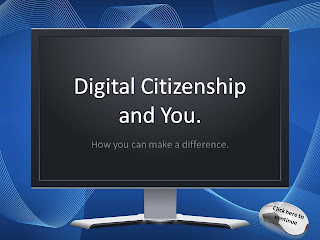
Digital Citizenship is an important lesson to teach, especially at a young age. I typically begin teaching this concept around the third grade so it is embedded in their minds when they become young adults.   I provided you with this PowerPoint to assist you in teaching your class about Digital Citizenship. Please note that it is created as a .pptx file and the directions for the PowerPoint are provided for you in the notes section under each slide. Included in The Digital Citizenship and You PowerPoint is an interactive quiz that works very well as a whole-class lesson. I have also created a "I pledge to be a good digital citizenship" for you and your students to sign and display with pride. To go along with the lesson on Digital Citizenship, I  recommend  the PBS.org interactive online game called Webonauts . My third graders loved playing this game as it beautifully illustrates how to be a good citizen- on and offline! And hey- it's fun too! Download the Digital Citiz...

3rd Grade- Learning the Internet with Worksheets and PowerPoint

Image
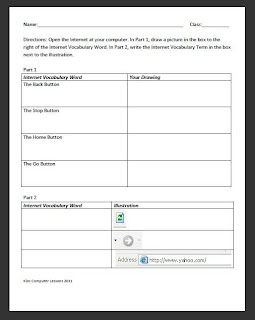
Grade:  3 Major Topic: Typing- Parts of the Internet Week/Weeks: 3-4 classes NETS for Students : 3. Research and Information Fluency Students apply digital tools to gather, evaluate, and use information.  5. Digital Citizenship Students understand human, cultural, and societal issues related to technology and practice legal and ethical behavior. 6. Technology Operations and Concepts   Students demonstrate a sound understanding of technology concepts, systems, and operations.  Materials: Learning the Internet Worksheet Intro to the Internet PowerPoint includes link to the Internet for Kids Class at end of ppt! Parts of the Internet Work Sheet Learning the Internet Worksheet Internet (preferably Internet Explorer)   Whiteboard and projector   Computer Activity: 1. Introduction to the Internet PowerPoint on Day 1. Go through the terms- have the students take notes if deemed worthy. Make sure to have the students type in the link http://www.bcls.lib.nj....

Third Grade Typing Unit using PowerTyping.com

Image
Unit Name: Intro to Typing Grade:  3 Major Topic: Typing- Memorizing the Keyboard Week/Weeks: 7-9 classes NETS for Students : 6. Technology Operations and Concepts   Students demonstrate a sound understanding of technology concepts, systems, and operations. Students:   a. understand and use technology systems. Materials: Blank Computer Worksheet Blank Computer Test Printable WPM Worksheet Website:  http://www.powertyping.com/qwerty/lessonsq.html Typing PowerPoint Internet Whiteboard and projector Computer Word Processor Refer to  http://www.customtyping.com/tutorials/kb/Correct_fingering.htm for correct finger placements. Motivation: Show Typing PowerPoint and discuss the basics of typing. Activity: Week 1- The main goal of this typing year is to have the students memorize the keyboard! After the introduction of the Typing PowerPoint, have them fill in the left hand home row keys: ASDF onto their blank keyboard.  Have them...