Posts

Website Spotlight: Symbaloo for Education

Image
Tablet. Chromebook. iPad. Smart Phone. What do these tech tools all have in common? Apps. Children are often excited when they see a colorful square with a fun icon nestled inside. For years I have been listing hyper-linked words on my classroom Website for students to endlessly search through until they found the exact link I was directing them to. Then I stumbled onto Symbaloo  and was able to make the list of links into colorful "app-like" clickable boxes. You can get Symbaloo for free in both "public" and "education" versions as well as use the paid version with more features. Easily bookmark and share your Websites with ease- as well as make it visually appealing! Symbaloo can turn your list of hyper-linked Web Words and make them into fun app-like bookmarks. Have your students sign up and create their own Symbaloo's for a research project. Create a Symbaloo and post it to your classroom Website or have the Symbaloo be the first Web page that ...

Make Word Clouds and Shapes with Tagul

Image
Word Clouds. Those popular little word clusters that make text fun and visually appealing. But how can I use them in my classroom- and where can my students not only create a Word Cloud- but save it as well? Let's start with the later.  Tagul  is a wonderful Website for your Tech Toolbox that has taken those Word Clouds a step further by allowing the user to not only select the shape, but text color, font styles and animation as well. And best of all it is free and (here's the kicker) unlike Wordle , you can save your work. Your students will need an email to create accounts. What can I do with Tagul and Word clouds? Sight Word- Word Cloud Taguls! As part of my curriculum, Kindergartners are introduced to the Keyboard. My lessons start off basic: understanding that the letters on the keys are in QWERTY order and to slowly become familiar with where they are located- and not so much on form. Anyway, we typically practice typing our names and then I slowly introduce sight words...

Teachers Love Technology {Infographic}

Image
Like many computer education teachers out there, I myself am responsible for the technology in-services provided to the teachers and staff within my school building. Being an Educational Technologist has taught me a lot about how technology works across the curriculum, in individual classrooms and how my lesson and unit plans can aid in the success of classroom teacher's integration of technology. Below is a very interesting infographic about how teachers are more apt to using technology (yay!) and how their students are very receptive to it- and how technology is even raising test scores!   Please Include Attribution to OnlineUniversities.com With This Graphic

Digital Citizenship for 3-5th Grade

Image
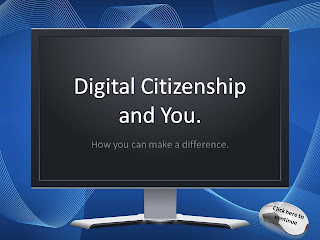
Digital Citizenship is an important lesson to teach, especially at a young age. I typically begin teaching this concept around the third grade so it is embedded in their minds when they become young adults.   I provided you with this PowerPoint to assist you in teaching your class about Digital Citizenship. Please note that it is created as a .pptx file and the directions for the PowerPoint are provided for you in the notes section under each slide. Included in The Digital Citizenship and You PowerPoint is an interactive quiz that works very well as a whole-class lesson. I have also created a "I pledge to be a good digital citizenship" for you and your students to sign and display with pride. To go along with the lesson on Digital Citizenship, I  recommend  the PBS.org interactive online game called Webonauts . My third graders loved playing this game as it beautifully illustrates how to be a good citizen- on and offline! And hey- it's fun too! Download the Digital Citiz...

Teaching about the Internet: an Activity for 6th Grade

Image
One of my most favorite topics to teach is the Internet. Many, including adults, think that the Internet and the World Wide Web are two of the same. I typically begin discriminating between the two as young as Kindergarten when they begin to slowly navigate around the World Wide Web via the Internet. It is rather a hard concept for younger students to learn and I love teaching the analogy that the Internet is like the shopping mall, and inside this shopping mall you would find stores like the World Wide Web, email, Instant Messaging, FTP and Newsgroups (amongst others.) In 6th grade we get “connected” to and learn how many users connect to the Internet around the world. This activity is really fun and I would love to share it with you! What you need:  Yarn  Popsicle sticks  These flags here - Please note that this is a Word Document that you can go back and edit when new stats are @ http://www.internetworldstats.com/top20.htm  Glue, tape and laminate to protect those...

Free Typing Website- TypingWeb

Image
If you are like me, and have a very limited budget, you may be finding yourself searching for resources that are free or real cheap to enhance your students' learning experience. I have mentioned several typing Web sites on KCL now and want to introduce you to yet another fantastic resource for your technology toolbox! TypingWeb, located at http://www.typingweb.com/ , “ is a free online typing tutor & keyboarding tutorial for typists of all skill levels. TypingWeb includes entertaining typing games, typing tests, and free official typing certification” {Verbiage taken from the Website itself!} I have been using TypingWeb now for three months to teach my 4th graders how to type and instantly feel in love with this program. Aside from being completely free, it houses a teacher portal where you can easily upload classes to help you assess your student’s typing needs. At the end of each lesson, your student’s also have an option to print out a certificate and play games that enhan...

2nd Grade- Introduction to Microsoft Word

Lesson Name: Microsoft Word Grade: 2 Major Topic: Word Processing Week/Weeks: 5 NETS for Students : 1. Technology Operations and Concepts Students demonstrate a sound understanding of technology concepts, systems, and operations. Materials: Microsoft Word- any version Electronic White Board Computer Projector (if needed) Activity: Week 1- Introduce Microsoft Word: Show how to open/close the program from their desktop Depending on the version of Word you are using, give your students the grand tour of the menu or ribbon. Demonstrate how to type words, change font, and indent. For this intro they need not to worry about spelling or grammatical errors. This week’s Intro Lesson: With Microsoft Word open at each student’s computer, have them type in his or her first and last name. You may have to remind students at this grade to use the shift key to make the first letter in their first and last name capital. Have them highlight their name by clicking and ...